GuidesQR-bills and contributions
QR-bill with Excel: what it can do and where it falls short
Excel is great for the member list, the amounts and who has paid. The payment part of the QR-bill, with the Swiss QR Code, is another matter. Here you see where the line is, how to prepare the sheet and the three precautions that prevent errors.
Only for people who live in Switzerland.For information. This guide follows Swiss law and Swiss rules. It may contain errors or be out of date: always check the official sources and, if in doubt, ask an official service for help. Not financial, tax or legal advice; for fees and e-banking features, your bank's information applies.
- What Excel does well
- Where it falls short
- A sheet that works
- Three precautions
- From Excel to QR-bill
- Check before sending
- Questions
What Excel does well
Many treasurers already keep everything in a spreadsheet. And that makes sense: for this, Excel is great.
- The member listName, email and address, one person per row.
- The amountsEach category's fee, or an expense split by value shares.
- The sumsTotals, subtotals and what is still to be collected.
- Who has paidA column with the payment date.
Where Excel falls short: the payment part
A QR-bill has two parts: the invoice and the payment part, with the receipt. The invoice can come from Excel. The payment part follows a SIX standard, to the millimetre.
InvoiceThe text, the table, the amountsListWho pays how muchAccountsThe totals and who has paid
46 mmThe Swiss QR Code, with a 7 mm Swiss cross in the centre148 mmThe payment part; the receipt next to it is 62 mmAddressStructured: street and number in separate fieldsReferenceWith a calculated check digit
On its own, Excel does not generate the Swiss QR Code. For the payment part you need a program, an add-in or an app that follows the standard. The list can stay in Excel.
A member sheet that works
One person per row and one piece of data per column. The columns are the fields of the QR-bill. That way the list moves to any program without being redone.
- 1NameFull name, in a single columnRequired
- 2EmailWhere the QR-bill is sentRecommended
- 3StreetOnly the street, without the numberOptional
- 4NumberIn a separate columnOptional
- 5Postal codeFor example 1000Optional
- 6TownFor example LausanneOptional
- 7CountryTwo letters: CH, FR, PT…Optional
No total rows in the middle. No empty rows separating groups, no merged cells. Put the totals on another sheet.
Does my sheet work?
Tidy up the sheet first. One person per row, one piece of data per column; totals on another sheet.
Separate the street from the number. Since 21 November 2025, the QR-bill only accepts the structured address.
Check the references column. It must be formatted as "Text": if Excel has turned the last digits into zeros, the reference is ruined.
Your sheet works. Save it as "CSV UTF-8" and follow the path below.
Three precautions in Excel
In a number with more than 15 digits, Excel replaces the rest with zeros. The reference is ruined, with no warning:
Correct210000000003139471430009017 In Excel210000000003139000000000000
Format the column as "Text" before pasting, or start each reference with an apostrophe (').
Since 21 November 2025, the QR-bill only accepts the structured address. "Rue du Lac 12" in a single cell has to become "Rue du Lac" and "12".
CSV is the format programs read. In "Save As", choose "CSV UTF-8 (Comma delimited)": accented letters, as in Müller or Zürich, come through unharmed.
The list contains personal data. Members' addresses and emails. Keep it only where you need it and do not send it to everyone.
From Excel to QR-bill: the path
- The listIn Excel, one person per row
- The CSV file"Save As", CSV UTF-8
- The QR partIn a program or app that follows the standard
- SendingOne QR-bill as a PDF per person
All the QR-bill fields, IBAN or QR-IBAN and the 2026 rules are in the guide Create a QR-bill.
Check before sending to everyone
- The SIX portalSIX has a validation portal for the Swiss QR Code. Registration required.
- Scan with your bank's appRead the code of the first QR-bill in your e-banking. Do not confirm the payment.
- CompareAccount, name, amount and reference must all show up correctly.
Before sending: the checklist
- One person per row, with no empty rows or totals
- Full name in a single column
- Emails checked (no extra spaces)
- Street and number in separate columns, if there is an address
- Postal code, town and country filled in for each address
- References column formatted as "Text"
- Saved as "CSV UTF-8"
- The first QR-bill scanned in e-banking, without confirming the payment
From the Excel sheet to QR Quota
- The templateIn the app: Members, "…", Download template
- Your columnsPasted into the template, in the same order
- Import membersYou choose the file and the association
- One QR-bill per memberEach with its own reference
That is what QR Quota is for, an app for iPhone. The list comes in from Excel once; from then on, the app makes the QR-bills.
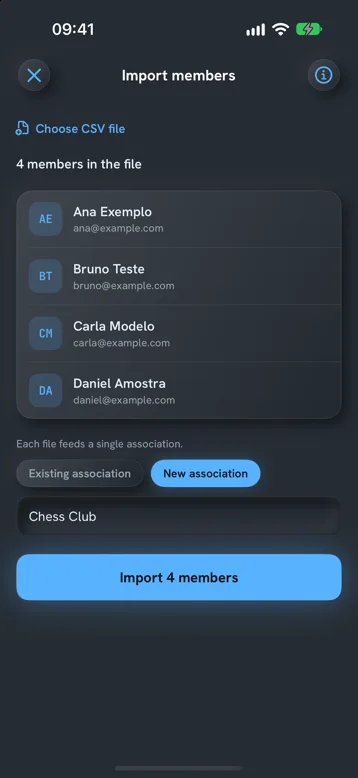
- The CSV from your ExcelWith commas or semicolons, and with accents.
- You see it before importingThe app shows the list and counts the rows without a name.
- No duplicatesAnyone already in the association with the same email is not added again.
- References made by the appSCOR with the regular IBAN; QRR with the QR-IBAN. It follows the Swiss Payment Standards (IG v2.3).
- Members do not need the appThey pay the PDF in e-banking, like any QR-bill.
- The data stays on the iPhoneNo account. The app does not talk to your bank: you mark who has paid.
Free for one association with up to two members and three active expense reports, no time limit. A bigger list needs Pro, which you can try free for 14 days; then you choose weekly, yearly or a one-time payment, for life. The price is in the App Store.

Download QR Quota for iPhone. One QR-bill per person, each with its own reference, sent from your own email. Free to start, no account.

Frequently asked questions
Can I make a QR-bill with Excel alone?
The invoice, yes. The payment part, with the Swiss QR Code, follows a SIX standard, and Excel on its own does not generate it. You need a program, an add-in or an app that follows the standard; the list can stay in Excel.
Why does the QR reference get ruined in Excel?
The QR reference has 27 digits and Excel only keeps 15: it replaces the rest with zeros. Format the column as "Text" before pasting, or start each reference with an apostrophe.
Can the street and the number stay in the same column?
In the sheet they can, but it is better not to. Since 21 November 2025, the QR-bill only accepts the structured address, with the street and the number in separate fields. Splitting them already in Excel saves work later.
Which format do I save the list in?
As CSV, which is what programs read. In "Save As", choose "CSV UTF-8 (Comma delimited)": that way accented letters, as in Müller or Zürich, come through unharmed.
How do I know the QR-bill is right before sending it?
SIX has a validation portal for the Swiss QR Code, which requires registration. And you can scan the first QR-bill with your bank's app, without confirming the payment, and check the account, the name, the amount and the reference.
Do members need Excel or an app?
No. They receive the QR-bill as a PDF and pay in e-banking or in their bank's app, like any other QR-bill.
About this guide. Informational content. Not legal, financial or tax advice. The QR-bill rules are those of SIX, in the Swiss Implementation Guidelines, version 2.3. Microsoft and Excel are trademarks of Microsoft Corporation; this guide is not affiliated with Microsoft. This guide may contain errors or be out of date: always check the official sources. Updated in October 2026.
Sources (5)
- SIX: Swiss Implementation Guidelines for the QR-bill, version 2.3 (PDF): dimensions, structured address, references
- SIX: the QR-bill standard (versions 2.3 and 2.4)
- SIX: tools and validation portal for the Swiss QR Code
- Microsoft: large numbers and the Text format in Excel (15 digits)
- Microsoft: Excel specifications and limits