Swapping shifts in a team: swap two shifts and tell everyone
Hold your finger on a shift, choose “Swap shift” and tap the other person’s shift. The day, hours and place stay; only the people swap. Whoever loses a shift that was already sent gets a notice in the next send.
Only for people who live in Switzerland.For information. This guide explains how to use Send Planning and summarises Swiss rules on work. It may contain errors or be out of date: always check the official sources (Fedlex, SECO, your canton's labour inspectorate) and, if in doubt, ask an official service for help. Not legal advice. Prices are in the App Store.
- How the swap works
- Before and after
- Who gets told
- Swap, move, duplicate
- Overlaps and days off
- The rest of the plan
- The app
- Questions
How do you swap two shifts in Send Planning?
Hold your finger on a shift, choose “Swap shift” and tap the other person’s shift. The rest of the screen turns grey, you confirm, and it is done. The day, the hours and the place of each shift stay the same: only the two people swap.
- Long presson Ana’s shift
- Choose “Swap shift”in the menu that opens
- Tap Rui’s shiftand confirm
Afterwards, Rui has the Friday shift and Ana has the Saturday one. Only the names change.
No swap request, no approval. Your team members have no app; they only receive messages. The swap is agreed between the people, and whoever manages the plan makes it in the app.
The plan before and after the swap
In the example, Ana works on Friday and Rui on Saturday, both from 5 pm to 11 pm at Café Central. After the swap, the shifts stay on the same day, but with the other name.
Who finds out about the swap?
If the plan had not been sent yet, there is nothing to fix: each person gets their current shifts when you send. If the shift had already been sent, it works like this:
- Whoever loses the shiftgets a notice in the next send.
- Whoever gets itreceives it in their own send.
- Everyone elsegets nothing new. Each person only sees their own shifts.
No longer yours: Fri (Nov 6): 17:00–23:00 • Café Central Sat (Nov 7): 17:00–23:00 (30 min break) • Café Central
✓ SentNo longer yours: Sat (Nov 7): 17:00–23:00 • Café Central Fri (Nov 6): 17:00–23:00 (30 min break) • Café Central
✓ SentThe earlier everyone knows, the better. For new working hours, the law asks that employees are informed as early as possible, as a rule two weeks before a duty with a new schedule (Art. 69 ArGV 1 (Ordinance 1 to the Labour Act)). Whether that applies to a single swap depends on your business and your collective agreement (GAV/CCT).
Swap, move or duplicate: what is the difference?
Three things that are easy to mix up. You find all three with a long press on a shift, or in the editor.
WhoTwo people exchange their shifts.What staysThe day, the hours and the place.MessageWhoever loses the shift gets a notice in the next send.
WhoThe same person, a new slot.What changesThe day or the hours.MessageFor a shift already sent, the next send carries an addendum: old → new.
Duplicate makes a copy of the shift, for example for another day. The original stays, so nothing is swapped and nothing is moved.
What if the swap creates an overlap?
After a swap, someone may end up with two shifts at the same time, or with a shift on a day off. How strict the app is, you choose in the settings, for each of the two situations:
- AllowedNo message at all.
- WarningThe app warns you and you decide.
- ConflictThe app treats it as a conflict.
Days off and absences are entered from–to (both days included). The reason stays private and never appears in the message.
The rest of the plan
- Routes (Pro)Kilometres and minutes from home to the place, calculated with Apple Maps. Routes are per person.
- Repeating seriesDaily, weekly, every two weeks, monthly or yearly: what repeats is set up once. The free plan has 1 series.
- Days offEntered from–to. They show in the plan, and the conflict rule applies to them too.
- PDF poster (Pro)The day, week, month or year in A6 to A3, ready to pin up.
- SendingBy WhatsApp, SMS, email or Share, as text, image or .ics (calendar, email and Share only).
Send Planning on your iPhone
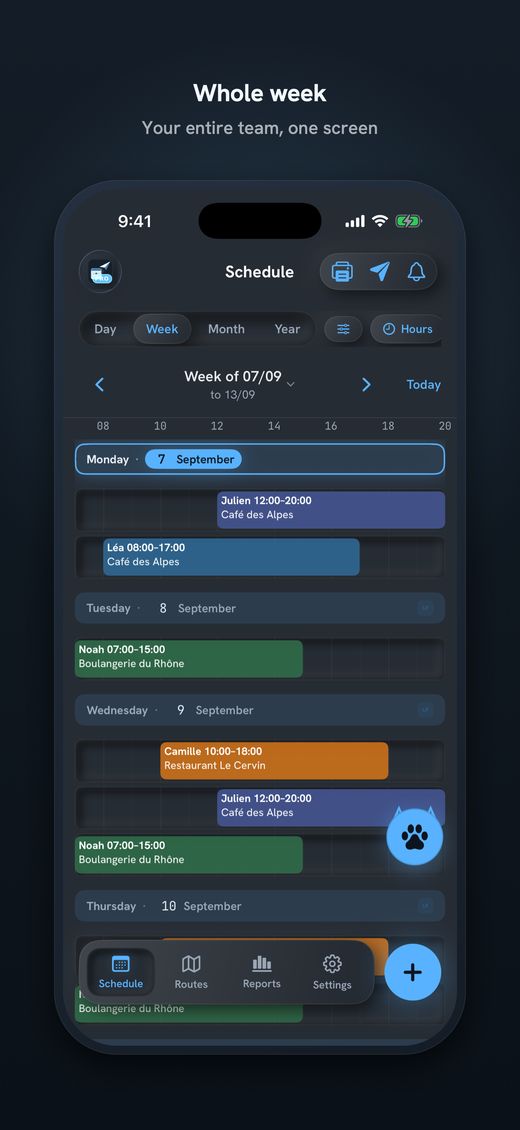
- Each person gets only their own shiftsNo account, no computer, straight from the iPhone or iPad.
- The data stays on the deviceThere is no server of mine and no account. Everything works offline, except sending.
- No app for the team membersThey get a message, nothing more.
Free to try, with no time limit: 1 team member, 1 place, 1 series. A swap needs two people, so a real team needs Pro (monthly, annual or one-time payment; 14 days free on subscriptions). The price is on the App Store.

Download Send Planning for iPhone and iPad. You make the team's rota and each person gets only their own shifts, by WhatsApp, SMS or email. Free to start, no account.

Frequently asked questions
How do I swap two shifts in Send Planning?
Hold your finger on one of the shifts and choose “Swap shift”. The rest of the screen turns grey: tap the other person’s shift and confirm. The day, the hours and the place stay the same; only the people swap.
What happens if the shift was already sent?
Whoever loses the shift gets a notice in the next send. Whoever gets it receives it in their own send. Each person only sees their own shifts.
Can team members request or approve a swap themselves?
No. There is no app for team members, no swap request and no approval: they only receive messages. The swap is agreed between the people, and whoever manages the plan makes it in the app.
What is the difference between swap, move and duplicate?
With a swap, two people exchange shifts and the day, hours and place stay. With a move, the person keeps the shift but the day or hours change; for a shift already sent there is an addendum (old → new). Duplicate makes a copy.
Does the app warn me if the swap creates an overlap?
That depends on the rule you choose in the settings: allowed, warning or conflict. It applies to overlaps and to shifts on a day off.
Do I need Pro to swap shifts?
A swap needs two people. The free plan has only 1 team member and 1 place, so a real team needs Pro. On subscriptions the first 14 days are free; the price is on the App Store.
About this guide. Informational content, not legal advice. The examples (names, hours, café) are made up. The article quoted (Art. 69 ArGV 1) links to the official text on Fedlex. The app helps you plan and inform; complying with the rules is the employer’s job, and collective agreements and cantons can provide otherwise. This guide may contain errors or be out of date: always check the official sources. Updated October 2026.
More guides on this topic
- Cleaning: note your clients and hours on the iPhone, and send each team member her schedule, with no paper and no Excel
- Pharmacy staff schedule: the team's shifts, week by week, on your iPhone
- Send the café rota by WhatsApp – and what data protection says about it
- Restaurant schedule: lunch service, dinner service and breaks
- Print the team schedule as a PDF, from A6 to A3, to put on the wall
- Announce the shift schedule in time: plan and send two weeks ahead
- Visit scheduling for small Spitex teams: visits, routes and kilometres
- A 7-day shift schedule without Excel: repeating shifts and days off
- Staff rota for a nursery on your iPhone: start free, no computer